Reconciliation
Reconciling checks that an account’s balance in Financy matches the real balance at your bank, and fixes any difference in one step.
How to reconcile
Step 1 — Open the reconcile dialog. Right-click an account card → Reconcile…, or open the account’s register and click Reconcile. Financy shows its current balance and asks for the actual balance — the figure from your bank statement or app.
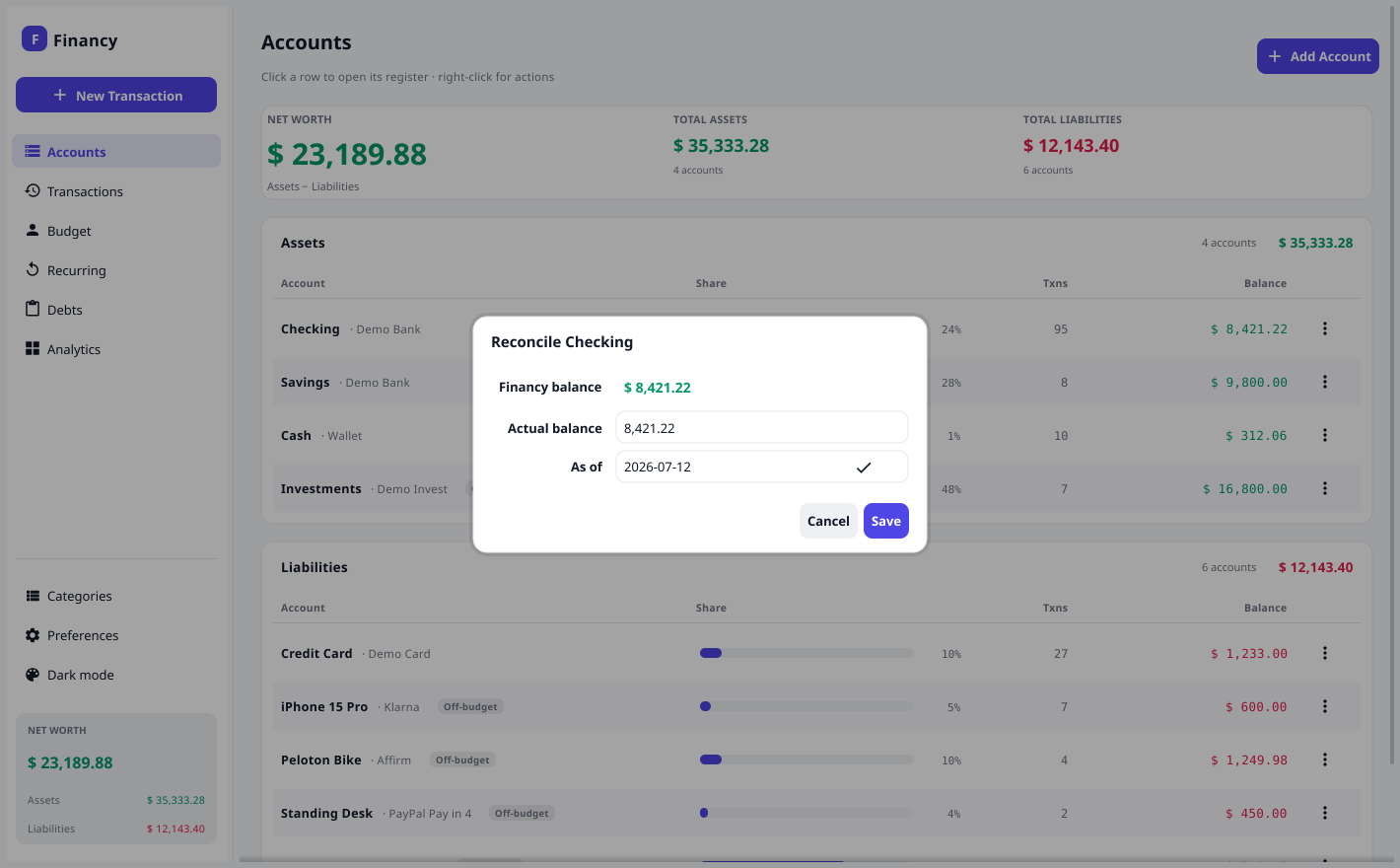
Step 2 — Enter your real balance. Type the balance your bank shows, set an As of date (defaults to today), and click Save.
If the two already match, Financy tells you so and does nothing. Otherwise it posts a single adjustment transaction for the difference.
Step 3 — Done. The account now matches your bank, and the adjustment appears in the register as Reconciliation adjustment.
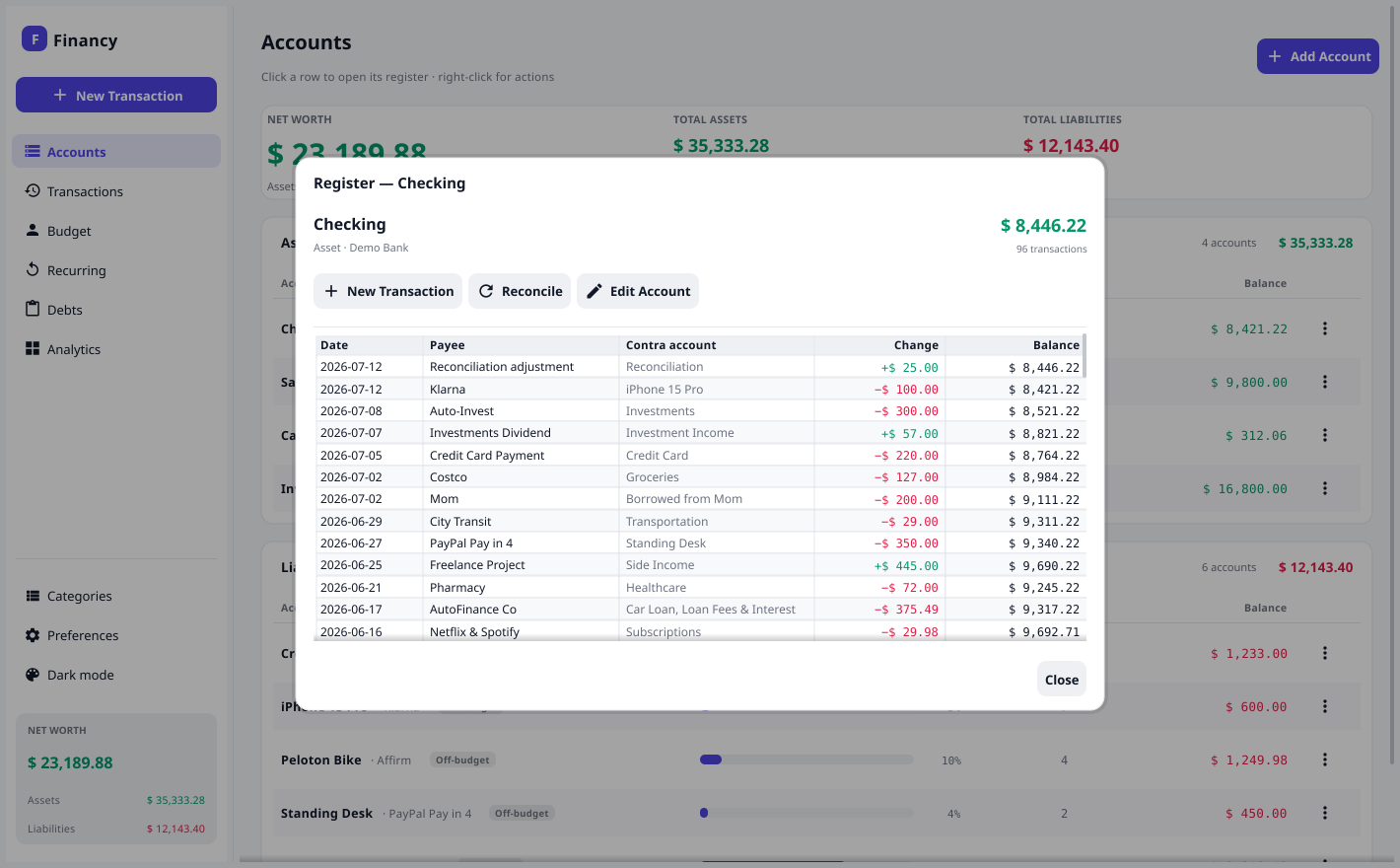
What the adjustment does
The adjustment moves the account up or down by the difference:
- Your bank shows more than Financy → the account is increased.
- Your bank shows less → the account is decreased.
The other side of the entry goes to a Reconciliation equity account (similar to opening balances). This means:
- Your net worth updates to reflect the corrected balance.
- The adjustment does not count as income or expense, so it won’t distort your Analytics — it’s a correction, not spending or earning.
Liabilities
For a credit card or loan, “actual balance” means the amount owed. If your statement says you owe more than Financy thinks, reconciling increases the debt (and lowers net worth) accordingly.